How to Make a Genjutsu Motion Transfer Video (Step by Step)
A practical Genjutsu motion transfer tutorial: pick a clip and a character photo, choose Kling 3.0 Motion Control or the Saver model, check the price per second and fix the most common errors.
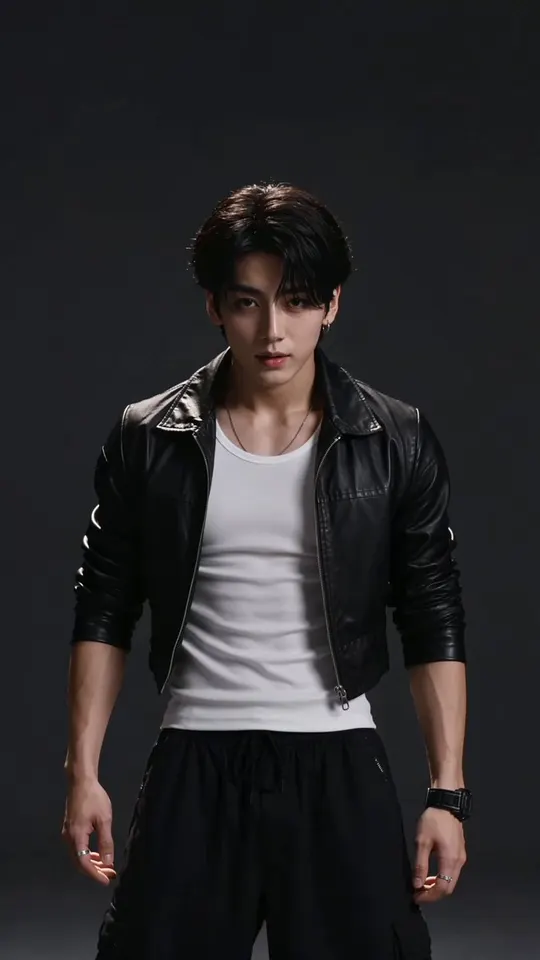
Motion transfer is the Genjutsu effect people ask about most: you give the studio a short clip of someone moving and a picture of a character, and the character performs the same moves, with the same timing and the same camera. This guide shows how to make a Genjutsu motion transfer video from start to finish, which model to choose, what it costs per second, and how to avoid the failures we see most often.
Genjutsu is an independent studio. We are not affiliated with Higgsfield or any other company that uses the word "genjutsu". Each effect on our site names the model that runs it, so you always know what you are paying for.
What motion transfer actually does
A motion transfer model reads the body movement in your source video, frame by frame: where the head, shoulders, arms, hips and feet are, and how they move. It then draws the character from your photo in those poses. The result keeps:
- the timing of the original performance, beat for beat;
- the camera framing and movement;
- the length of your clip (the output is as long as the input).
What changes is the performer. Your photo decides the face, the hair, the outfit and the art style. A cartoon mascot, a 3D figure or a painted portrait can all dance the same steps.
Genjutsu offers two flavours of this idea:
- Motion Transfer draws your character performing the moves. It runs on Kling 3.0 Motion Control, with Kling 2.6 Motion Control as the cheaper Saver option.
- Photo Performer runs on Wan 2.2 Animate Move. It animates the character inside the photo's own scene, so the background comes from your picture rather than from the clip.
If you want to keep the original scene and only replace the person in it, that is a different effect, Person Swap (Wan 2.2 Animate Replace). Our effects overview compares all of them.
What you need before you start
A source clip
- MP4 or MOV, up to 95 MB.
- 3 to 30 seconds long. Shorter clips are rejected by the models; anything over 30 seconds needs trimming first.
- One person. The motion models look for a single performer. A clip with a crowd or several dancers often fails with "no valid characters detected".
- Head, shoulders and torso visible for most of the clip. Full body is best for dances.
- Steady framing and decent light. Fast whip pans, heavy motion blur and people walking in front of the performer confuse the pose tracking.
- Aspect ratio between 2:5 and 5:2, and both sides larger than 340 pixels. Normal phone video (9:16) and landscape video (16:9) both fit.
Use a clip you filmed yourself, or one you have the rights to. Do not use footage of public figures, and never use footage of minors.
A character photo
- JPEG or PNG, sharp, with the character facing the camera.
- Show the same body parts the clip shows. If the clip is full body, a full-body picture works better than a head shot.
- Keep it simple: one character, a plain background, no text or logos.
- Up to 10 MB for Kling, up to 5 MB for Photo Performer.
Original characters work best: a mascot you drew, a figure you designed in an image model, or a photo of yourself. You will be asked to confirm that you have the rights to every person in your clip and photo before you can render.
Step by step in the Genjutsu studio
- Open the Genjutsu studio and choose the Motion Transfer card in the effect gallery.
- Drop your source clip into the clip slot. The studio reads its length and size in your browser, then uploads it and checks it again on the server.
- Add your character photo in the character slot.
- Leave the model on Kling 3.0 Motion Control, or switch to Saver (Kling 2.6) for drafts.
- Choose 720p or 1080p.
- Optional: add a short note, such as "keep the jacket closed". The model works without one.
- Tick the rights box. It confirms that you own or have permission for the people in the media, and that none of them is a public figure or a minor.
- Check the price on the Generate button, then render.
Rendering usually takes two to four minutes. The clip keeps its original sound, so a dance stays in sync with its music.
What a motion transfer video costs
You pay per second of your source clip, rounded up to whole seconds, with a 3-second minimum. The exact number is on the button before you click it.
| Model | 720p | 1080p |
|---|---|---|
| Kling 3.0 Motion Control | 37 credits/s | 41 credits/s |
| Kling 2.6 Motion Control (Saver) | 25 credits/s | 28 credits/s |
| Wan 2.2 Animate Move (Photo Performer) | 17 credits/s | — |
Some worked examples:
- An 8-second dance at 720p on Kling 3.0: 8 × 37 = 296 credits.
- The same clip on the Saver model: 8 × 25 = 200 credits.
- A 12-second Photo Performer clip: 12 × 17 = 204 credits.
Credits come in one-time packs that never expire; a credit costs between about 1.0¢ (Business pack) and 1.65¢ (Launch pack). See Genjutsu pricing for the packs and plans. If a render fails, the credits go back to your balance automatically.
Tips for a clean result
Start with good motion
The output can only be as clean as the movement it copies. A single dancer, filmed straight on, in daylight, beats a dark concert clip every time. If the clip has several people, crop or re-film it so one person fills the frame.
Match the framing
If your photo is a half-body portrait and your clip is a full-body dance, the model has to invent legs and shoes, and it may invent them badly. Match the photo's framing to the clip.
Keep it short while you test
Try a 4 or 5 second section of the move first, on the Saver model. When you like the look, render the full clip on Kling 3.0 at 1080p. This keeps experiments cheap.
One idea per render
Motion transfer copies movement; it does not restyle the scene. If you want a dancing character and an anime look, render the motion first, then run the result through Anime Redraw as a second step.
Common errors and how to fix them
- "No valid characters detected": the model could not find one clear person. Use a clip with a single performer whose torso is visible.
- "Needs a clip of at least 3 seconds": trim a longer section; the minimum is 3 seconds.
- "Takes clips up to 30 seconds": trim the clip. The studio shows the length after you drop it.
- The face drifts or flickers: use a sharper, front-facing photo and a clip where the face is not hidden by hair, hands or props.
- The render was blocked: content filters refused the clip or the photo. Credits are refunded. Check that the media contains no public figures, no minors and nothing explicit.
Where to go next
Motion is only one kind of Genjutsu effect. Read Genjutsu effects explained to see swaps and restyles side by side, or borrow ideas from our Genjutsu prompt list. When you are ready, open the studio and try a 5-second test.
Try it in the Genjutsu studio
Pick the effect from this tutorial, add your clip and see the credits before you render. New accounts start with free credits for a first still.